
Watching IPTV on Windows and Mac
Watching IPTV on Windows or Mac is a quick way to enjoy your plan at your desk. We support two desktop apps: Hot Player on Windows, from the Microsoft Store, and IBO Player on Mac, from the Mac App Store. Both show categories, favourites and a program guide, much like a TV app.
Method 1: IPTV on Windows With Hot Player
Open the Microsoft Store on your PC, search for Hot Player and install it. Open the app and note the MAC address and device key, or choose to add a playlist. Send us the device details with your order number, or enter the Xtream Codes login or M3U URL we sent you. Your channel list and program guide then load.

Method 2: IBO Player on Mac
On a Mac with Apple silicon, open the Mac App Store, search for IBO Player and install it. The setup is the same: send us the MAC address and device key, or enter your login. These apps may ask for the developer's own activation fee, separate from our IPTV subscription Canada plans.
From Your Computer to the TV
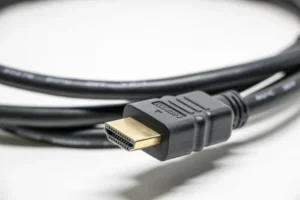
If your computer has an HDMI port, connect it to your TV and use the TV as a second screen. Watching IPTV on Windows this way turns any laptop into a temporary media centre. For a permanent setup, a dedicated streaming device is more convenient; see the IPTV on Firestick guide.
Performance Tips for IPTV on Windows
Laptops on busy Wi-Fi are prone to buffering. Use an Ethernet cable if you can, close heavy downloads and cloud sync while watching, and keep your graphics drivers and player updated. Test your connection with Speedtest by Ookla: about 5 Mbps per HD stream and 15 to 25 Mbps per 4K stream. 4K playback also needs a capable computer and screen.
Watching on a Second Screen
Computers are great for watching while you work. Hot Player and IBO Player can run in a small window, so a news channel can run in the corner of your screen. On a laptop, plug in headphones to avoid disturbing others, and keep the charger connected because video playback uses more battery.
If you have two monitors, drag the player window to the second screen and switch it to full screen there. You can then keep working on the main monitor while a live game plays beside it.

Staying Safe on a Computer
Download Hot Player or IBO Player only from the Microsoft Store or the Mac App Store, and avoid "free channel" bundles or browser extensions from unknown sources. Keep Windows or macOS updated and run your usual antivirus protection. Your playlist URL and login are private, so store them in a password manager rather than a shared document. These habits keep your computer safe while you watch.
New to the service? Read the IPTV Canada 4K home page for an overview, or compare our plans and pricing.
Troubleshooting IPTV on Windows and Mac
- No channels: confirm the MAC address and device key you sent us, then restart the app.
- Choppy video: switch to Ethernet and close other apps.
- Login error: check the full server URL, including http://.
More help for IPTV on Windows is in our IPTV support Canada checklist. The IPTV terms glossary explains M3U and Xtream Codes, and the how to install IPTV hub covers every other device.
New here? Start on the IPTV Canada 4K home page, then compare every IPTV subscription Canada plan before you choose.